Creating or modifying a process definition
Use process definitions to define the set of steps to be managed and tracked as part of a process, including step order, ownership, associated actions, and due dates.
Process definitions are stored in one of two locations: the Process Definition Library or within a file group. Access to the definitions is controlled by the file security settings on the Files tab of security.
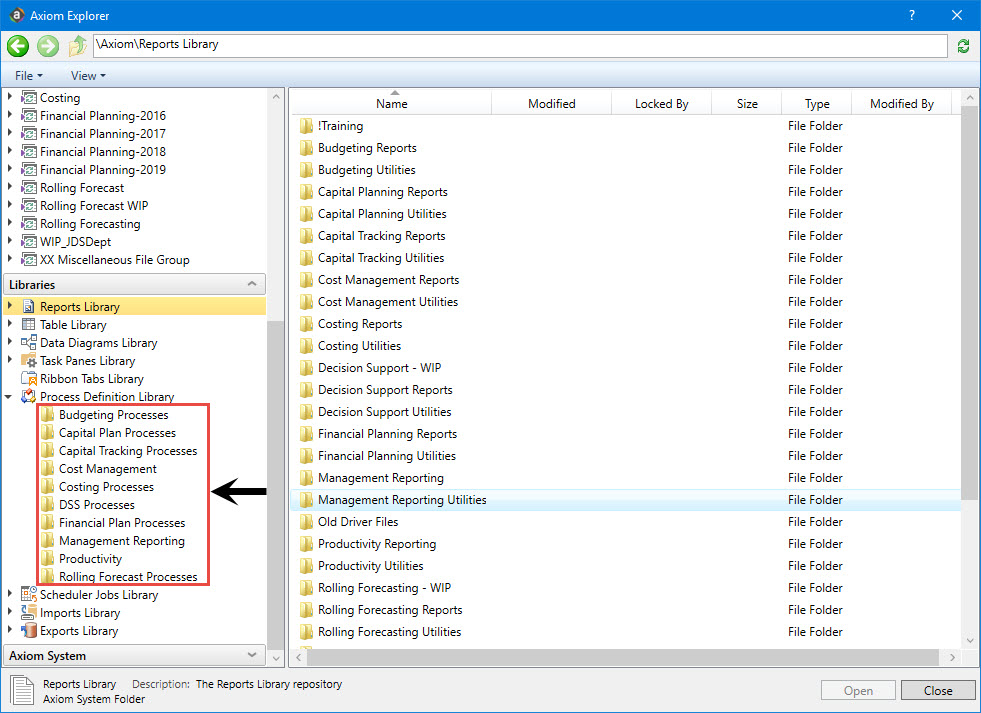
Only users who need to create and modify the process definitions need access to these files. Users who are assigned to perform individual steps in the process do not need access to the definition to perform the task or to view the process status.
NOTE: This topic discusses how to create a standard process definition. Standard process definitions and plan file process definitions share the same basic settings, but plan file process definitions are dedicated to plan file process steps, and also support additional features that are unique to plan file processes. For more details on process vs. plan file processes, see the Axiom Software Process Management Guide.
Process definitions are typically created by administrators, or other power users who are responsible for administrating parts of the system. The creator of the process definition needs to understand all of the steps of the process, who needs to perform each step, and when that step needs to be performed.
Process definitions do not have any impact on the system until they are activated.
To create or modify a process definition:
-
In the Axiom Explorer dialog, right-click the Process Definition Library (or a file group Process Definition folder), and click New > Process Definition.
NOTE: If you have permission to one or more Process Definition folders for file groups, you can also create process definitions within those folders.
The Edit Process dialog opens. As you are working in this dialog, any validation errors for missing or invalid settings display at the bottom of the dialog. You can save the process definition with configuration errors, however, you cannot start the process until all configuration errors are resolved.
-
In the Process Properties tab, complete the general process settings, as desired.
Option Description Process Name
The name of the process. This name displays in the Process Status dialog as well as in the My Files and Taskstask pane.
This name also defines the name of the file in the Process Definitions Library (and vice versa; if the file name is changed, the process name is updated to match).
Display Name The name of the process that displays to users. Description
Optional. The description of the process definition. This description displays in the Process Status dialog.
Process Owner
The owner of the process. By default, this is set to the user who created the process definition, but it can be changed to another user.
The process owner receives all administrative notifications for the process and can perform all administrative actions for the process (such as starting and stopping the process, overriding task ownership to mark steps as complete, and so on).
Allow step owners to see all steps in the process task pane Specifies whether the assigned step owners can see all of the steps in the process when they interact with tasks in the Process task pane.
By default, this option is disabled, which means that step owners only have access to Task View in the My Files and Tasks task pane, which shows the currently active task. If this option is enabled, then step owners gain access to Process View, which shows all of the steps in the process. Users can toggle between each view.
This setting is only applicable to non-administrator step owners. Administrators and process owners can always see all of the steps of any process.
Default Process Assignment
The user assigned as the default step owner if no specific user assignment is made for a particular step. The default assignment only applies to steps where the Assignment Type is set to User.
-
In the Process Steps tab, define the steps for the process.
-
To add a step, click Add, and select the type of step to add. New steps are added after the step that you currently have selected in the list. For details regarding the available options, see Process Step types.
-
To add a new step by copying an existing step, select the step, and click Duplicate.
- To remove a step, select that step, and click Delete. If the deleted step has child steps, those steps are removed as well.
-
To change the order of steps, you can drag and drop them to different locations in the list.
-
To copy a step, select the step, and click Duplicate. You can then modify the copied step as needed, and move it to the desired location in the list.
Steps are performed in the order listed. By default, steps are dependent and sequential—meaning that each step in the list must be completed before the next step can be done.
After you add a step to the process, you can configure the settings for that step in the right pane. This includes the display text for the step, the step ownership and due date, and other properties specific to the step type. You can also configure step-specific notification settings.
TIP: In most cases, you should configure the process-level notification settings on the Notifications tab before configuring any step-level notification settings. This way the steps can access the inherited process-level settings.
-
-
In the Notifications tab, complete the notification settings for the process. You can enable or disable notifications for the process, define the default notification delivery method, and define default notifications to apply to the steps in the process.
-
Click Apply to save (or OK if you are finished editing).
Copying an existing process definition
You can create a new process definition by copying an existing definition. To do this, use normal Axiom Explorer functionality:
- Right-click the definition file in the Process Definition Library, then select Copy.
- To paste a copy of the file, click Paste. The new file is named OriginalFileName - Copy.
- Rename the file, then open the file and change the process definition settings, as desired.
NOTE: This step is required for the annual rollforward process.
